1
Install the extension
Add WhatsApp Privacy to Chrome. The product is free and keeps this workflow in your browser.
Web Tidy · 100% Free Chrome Extension
Apply a local CSS visual blur to selected chat previews, names, avatars, open messages, media, gallery items, and typed text.
Published Chrome extension · Free · No Web Tidy login
Quick Start
Every instruction stays visible. Click a step to watch the matching segment from the product demo.
1
Add WhatsApp Privacy to Chrome. The product is free and keeps this workflow in your browser.
2
Use Chrome’s Extensions menu to pin WhatsApp Privacy to the toolbar, then click the extension icon when you are ready to prepare a screen share.
3
Open WhatsApp Web, choose the chat-list and chat-window surfaces to blur, set the strength, and inspect the exact screen before your audience sees it.
Preview / Fixture
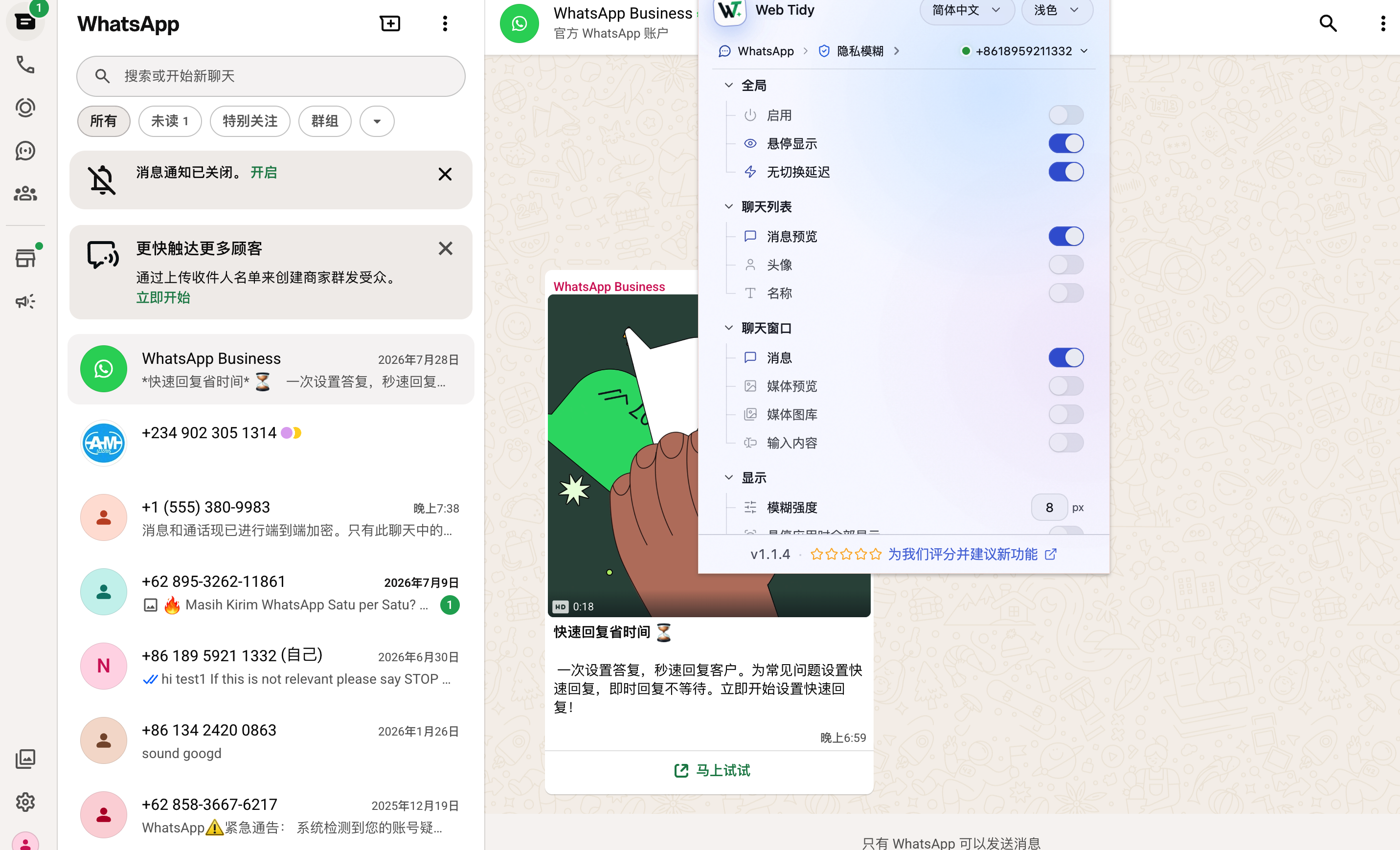
The left fixture renders the same extension control panel after installation; the right image shows the verified WhatsApp Web visual blur context without opening a real chat.
Audience and choice
WhatsApp Privacy is a presentation aid for the WhatsApp Web tab you already use. It helps make selected content harder to read on screen, but it does not change encryption, lock an account, or redact a file after capture.
Blur chat previews, contact names, avatars, and open messages before sharing a browser window or your desktop.
Mask real WhatsApp Web conversations that are not part of a product demo, support walkthrough, or internal tutorial.
Reduce casual on-screen exposure in offices, coworking spaces, projected screens, or any place where someone may glance at your display.
Keep blur on, then reveal a specific area on hover when you need to confirm a message or name before hiding it again.
Workflow and control
The blur runs locally in the WhatsApp Web tab, stores only your settings, and re-applies as supported page content changes.
Control previews, names, avatars, messages, media previews, gallery items, and typed text separately.
Chrome storage retains blur settings only; chat rows, contacts, and media are not exported or uploaded to Web Tidy.
If WhatsApp Web is already open, the extension focuses that tab; it opens WhatsApp Web only when no matching tab exists.
Restore defaults or refresh WhatsApp Web when a redesigned or missing surface needs another visual check.
Blur reduces readability on screen; it is not encryption, access control, notification hiding, device locking, or screenshot protection.
Reading and support
Keep the product boundary visible before treating a presentation, recording, or shared workspace as ready.
The extension cannot cover operating-system notifications, another window, camera video, or an image already captured.
It does not send WhatsApp messages, automate replies, sync CRM data, export contacts, or create chat backups.
Use Support and describe the affected surface without sending passwords, cookies, private messages, QR codes, or account credentials.
FAQ and next step
The verified product path applies local CSS-based visual masking and stores preferences in Chrome storage. It does not create a chat export or upload chat history to Web Tidy.
Current controls cover chat previews, names, profile pictures, open messages, media previews, the media gallery, and text in the input area.
Yes, when hover reveal is enabled. Disable that option before a presentation that should have no intentional reveal path.
No. It is a reversible visual layer in the current browser tab, not encryption, access control, or permanent redaction.
No. It uses the WhatsApp Web session already open in Chrome and does not request Chrome cookies or identity permission.
No. The verified scope is the matching WhatsApp Web tab. Check notifications, other windows, camera views, and the final sharing source separately.